

If I’ve learned anything from the state music conferences in recent years, it’s that music educators have to be our own press team. This past school year I became the PR team for the middle and high school in my district. I plan on offering my services to the elementary schools this year, but I haven’t made contact with those teachers yet because the end of the school year was crazy town!
In becoming the PR department for my own program and another music program in the district I learned a lot about writing a good newspaper article for our local news paper and I learned that I need to be more specific when I ask trip chaperones to get pictures of the groups while I retrieve scores. But that isn’t the point of this blog.
The point is to introduce you to the wonderful tool that is Canva. There are so may ways that Canva can be used by music teachers, or teachers in general. These are just a few of my favorite ways to use Canva in my job and I’m sure that you or I will find even more ways too!
Make Social Media Announcements
If you have a social media account for your band or choir then this will be really helpful when sharing information. We live in a very visual world, so making an immage to share an announcement will help catch your audience’s (your students’ parents) attention. Don’t believe me?
Think really hard about anything you’ve had to read on social media. Did you read the super long post from your kids school to get all the details, or did you just skim it for the key points? If you’re reading a blog post about how to fix something, do you rely on just the text, or do you use the pictures to help you know you’re doing the correct thing?
And this is a niche issue, but if you bought a brand new marimba with ESSER funds like I did, you were probably relying on pictures to make sure you put the new marimba together correctly because those directions were not great!

My point is, pictures are super helpful and they get the point across quickly. Use them!
I’ve seen directors create graphics for recruitment, band camp announcements, student shout outs, and to communicate with parents on field trips. The graphic above is one that I used to grab attention on a post that linked to a few local summer music camps.
There are so many great ways to use Canva for your social media announcements in your classroom.
Create engaging slides for announcements or content
I don’t know about you, but I like to have slides to follow along in my lessons to help me stay on track and help make sure that the lesson flows. If you want to avoid the boring slide presentation blues, then I would suggest Canva.
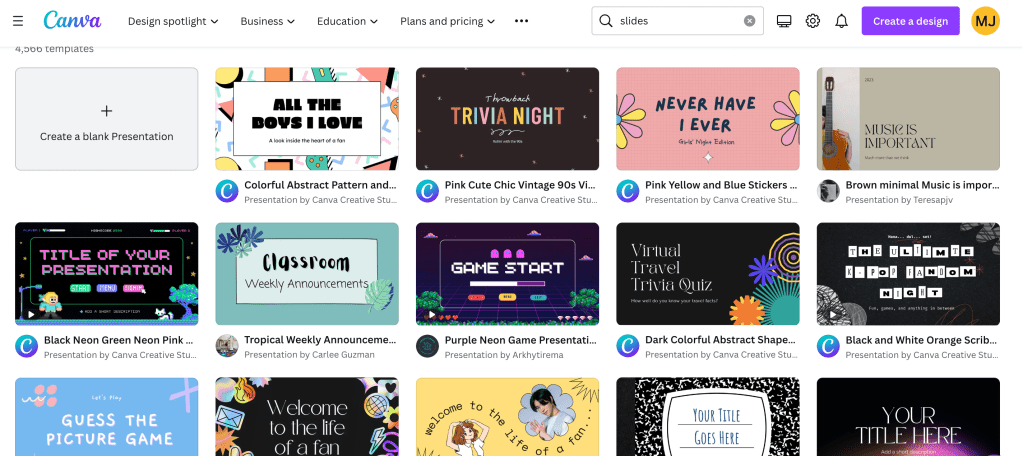
Canva has a ton of engaging elements that you can add to your slides such as animated arrows to point out important information. You can also upload your favorite countdown timer videos form YouTube and embed them into your slides. Canva has a few countdown timers, but there isn’t a lot, so I would still go with a countdown timer from YouTube.
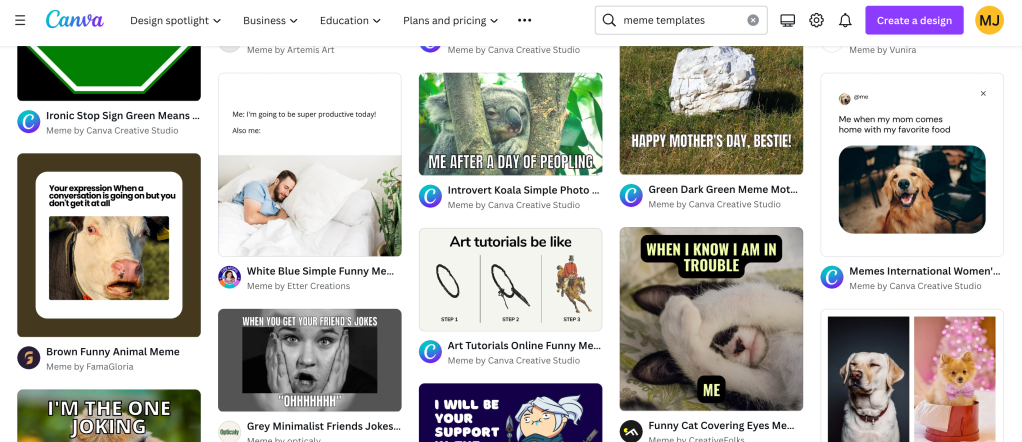
Create your own Meme Templates
This is super easy to do in Canva. All you have to do is upload a picture into a file for whatever size paper you’ll print the memes out on. Or your template should be formatted to fit the social media pages that you may have for your class. Show the students how to log in to Canva and how to duplicate pages, also show your students how to change the text in a text box. Then you’ll have tons of memes for all your meme needs.
You can also search for “meme template” in Canva, filter for free templates, and then let students edit them.
Make Reward Certificates
Canva has tons of templates for you to choose from where all you have to do is hit duplicate then type in names. You can even edit colors and fonts to suit your specific style or to match your school colors.
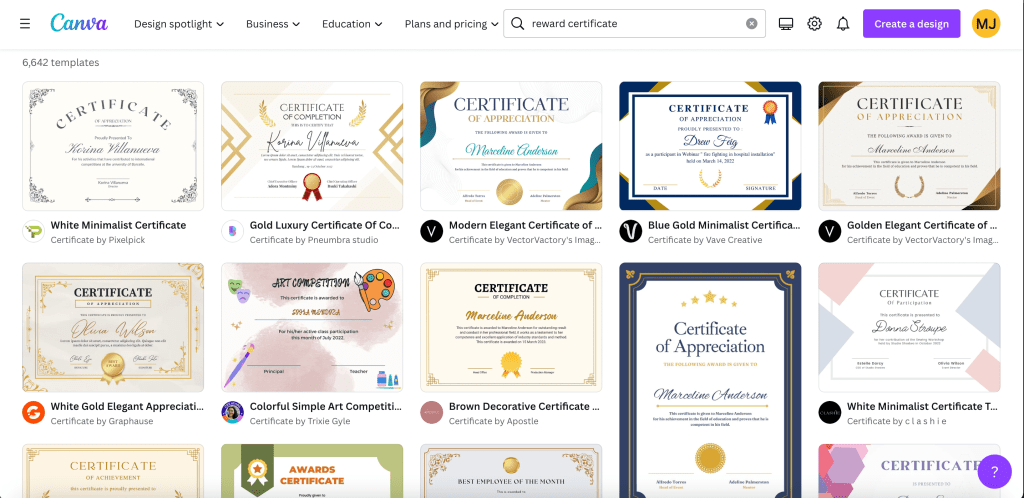
It also wouldn’t be difficult to make your own template in Canva.
Make concert Posters
I am still playing with this one because I didn’t make concert posters last year. And when I did make concert posters is was on an 8.5 x 11 with arial font and I only taped it in the front office. But I am committed to stepping up my game this semester and this is what I am drafting right now!
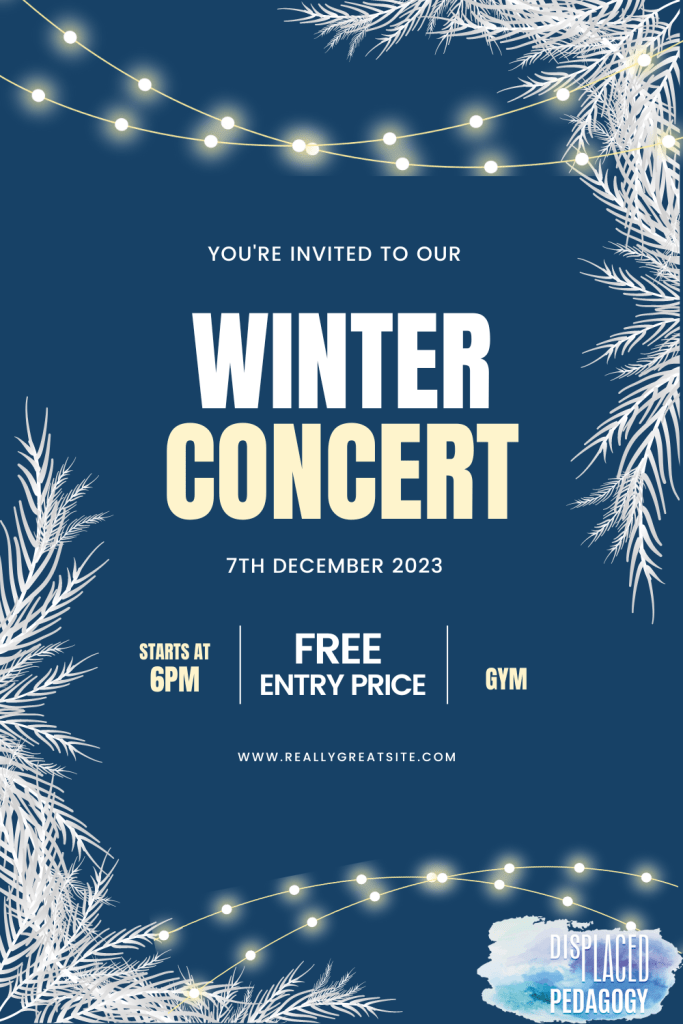
Its a little wonky because I had to resize it from its original size to make an image for this post, but it’s a HUGE upgrade from last years piece of copy paper. Also the concert poster wont have my business logo on it…
But once again, Canva has templates for these and all I did was type “winter” into the search bar and filtered out for a poster that I liked. I changed some information and BOOM, a beautiful concert poster for the winter concert that I made in June.

 Displaced Pedagogy